Are you seeing black borders around your monitor screen after upgrading your laptop, changing your graphics card, or connecting a new external display? You are not alone.
In this guide, you will learn how to fix black borders around the monitor screen on NVIDIA, AMD, and Intel graphics devices using simple step by step methods. This issue is very common in Windows 10 and Windows 11 and can usually be fixed in just a few minutes.
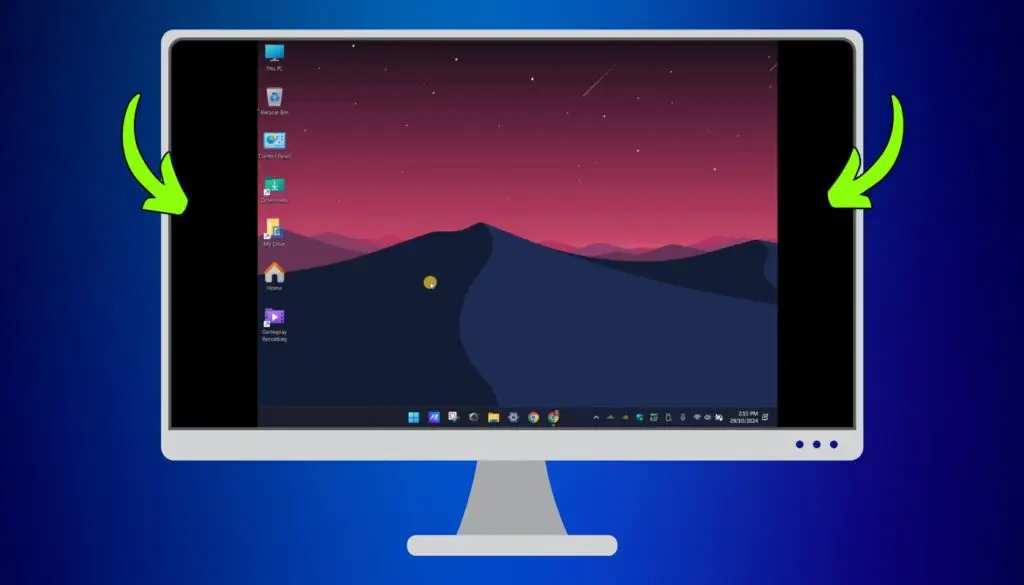
Why Do Black Borders Appear Around Your Monitor?
Black borders (also called letterboxing or pillarboxing) typically appear when there is a resolution or aspect ratio mismatch between your PC’s output and your monitor’s native resolution. This most commonly happens when you:
- Upgrade your laptop or connect a new external monitor
- Update or reinstall your graphics drivers
- Change your GPU or graphics card
- Switch display output modes (e.g., HDMI, DisplayPort, VGA)
The fix depends on which graphics processor you are using. Below, I have covered the steps for all three major GPU types.
▴ Fix for NVIDIA GPU Users
Step 1: Update Your NVIDIA Drivers
Outdated drivers are the most common cause of display scaling issues. Start here before anything else.
- Open your browser and search for NVIDIA drivers or go to nvidia.com/drivers
- Enter your GPU model details and download the latest driver package
- Install the driver and also install the GeForce Experience app if necessary.
- Once installed, look for the NVIDIA icon in your Windows system tray (bottom right)
Step 2: Set the Correct Resolution in NVIDIA Control Panel
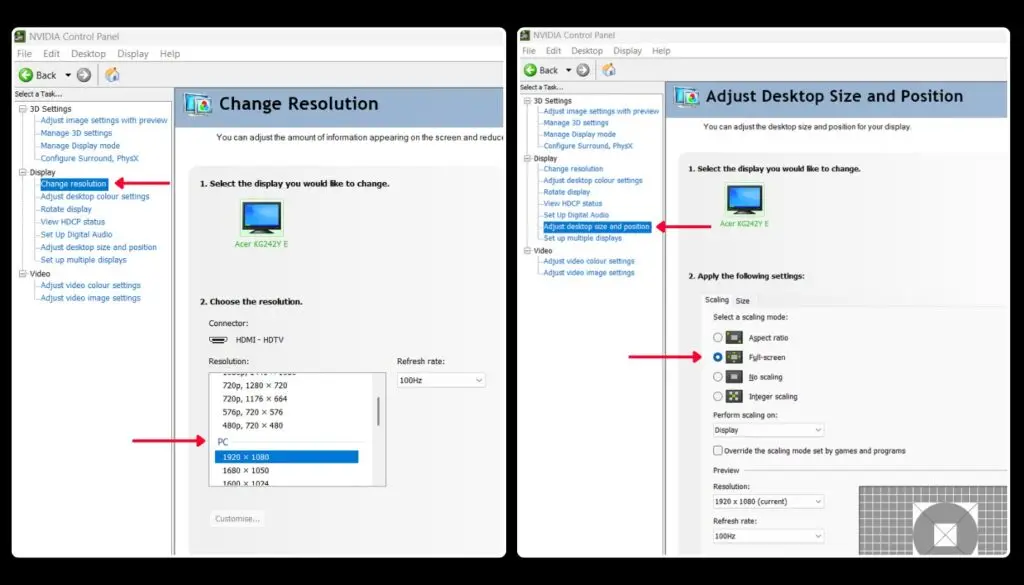
- Right-click the NVIDIA icon in the taskbar and select Open NVIDIA Control Panel
- Under the Display section on the left, click Change resolution
- Make sure your external monitor is selected at the top
- Under the PC section, select your monitor’s native supported resolution (e.g., 1920×1080 or 2560×1440)
- Click Apply and confirm the change
This fixes most screen size and resolution issues.
💡 Pro Tip: Always select the resolution under the PC tab rather than the Ultra HD tab in NVIDIA Control Panel. This gives you access to the full refresh rate options for your monitor.
Step 3: Adjust Desktop Size and Position (If Black Borders Remain)
- In NVIDIA Control Panel, click Adjust desktop size and position
- Under Select a scaling mode, choose Full-screen
- Click Apply
- If the issue persists, restart your device
▴ Fix for AMD GPU Users
Step 1: Update Your AMD Drivers
- Go to amd.com/en/support/download/drivers
- Download and install the latest AMD Radeon Software for your GPU model
- Restart your device after installation
Step 2: Fix Scaling in AMD Radeon Software
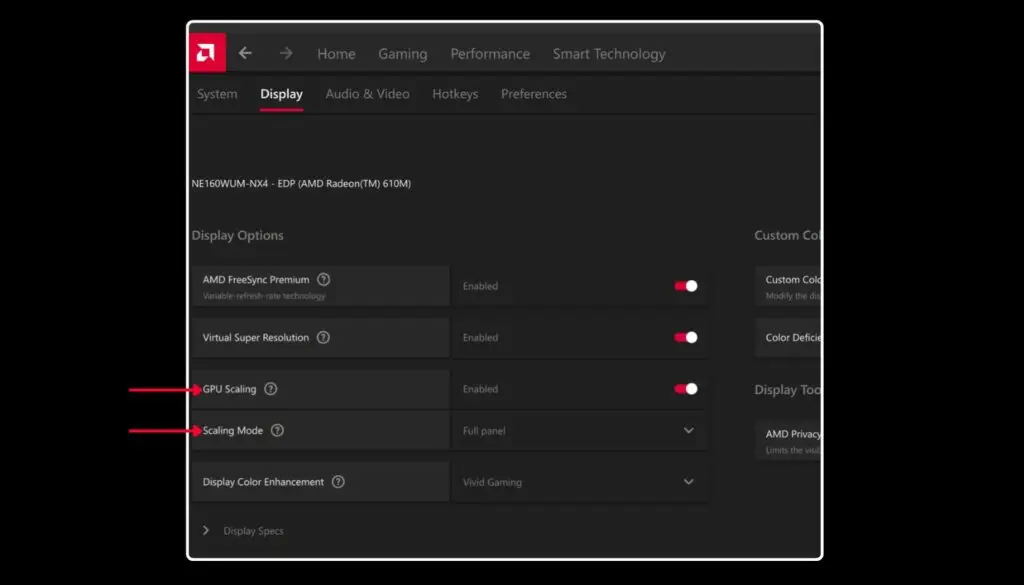
- Right-click on your desktop and open AMD Radeon Software (Adrenalin)
- Navigate to Settings > Display
- Find the GPU Scaling toggle and enable it
- Set the Scaling Mode to Full Panel
- Click Apply to save the changes
💡 What This Does: Enabling GPU Scaling tells your AMD card to stretch the output to fill the full panel rather than leaving black borders around it. Full Panel mode removes letterboxing and pillarboxing entirely.
▴ Fix for Intel GPU Users
Step 1: Check Display Resolution via Windows Settings
This is the most common fix for Intel integrated graphics users.
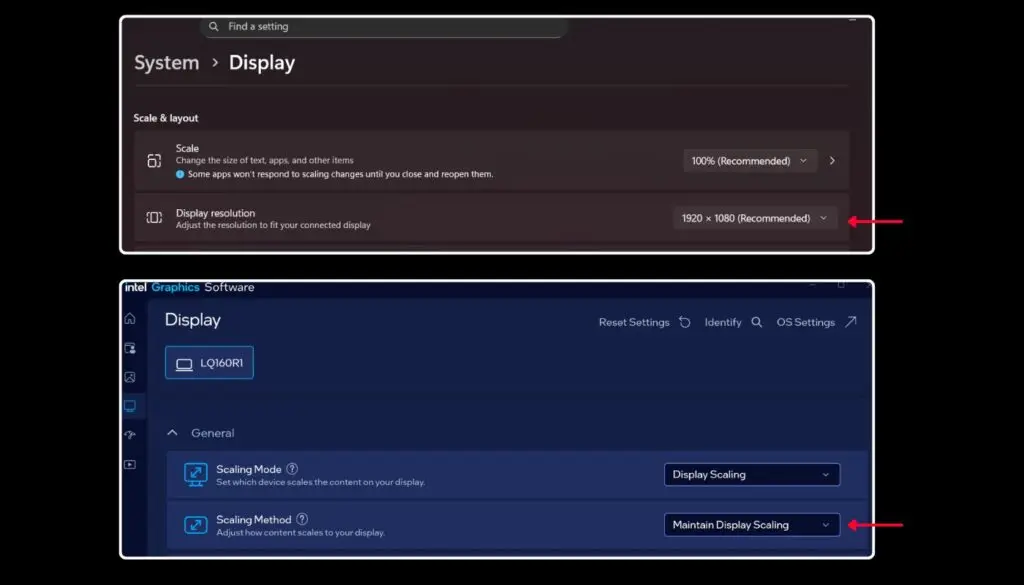
- Right-click on your desktop and select Display settings
- Scroll down and select your external monitor from the display diagram
- Under Display resolution, set it to the Recommended option (your monitor’s native resolution e.g., 1920×1080 or 2560×1440)
- Click Keep changes when prompted
⚠ Important: If your monitor’s native resolution is lower than your laptop screen’s resolution, it will cause a resolution mismatch and result in one of the screen displays being letterboxed or black borders around the screen. Always manually select the correct native resolution for the external display.
Step 2: Fix Scaling via Intel Graphics Software (Intel Arc Users)
- Open the Intel Graphics Software or Intel Arc Control app (search in Start Menu)
- Go to the Display section
- Find Scaling Method and set it to Scale Full Screen or Maintain Display Scaling
- Apply the changes
Common External Display Issue Fix for NVIDIA, AMD, and Intel
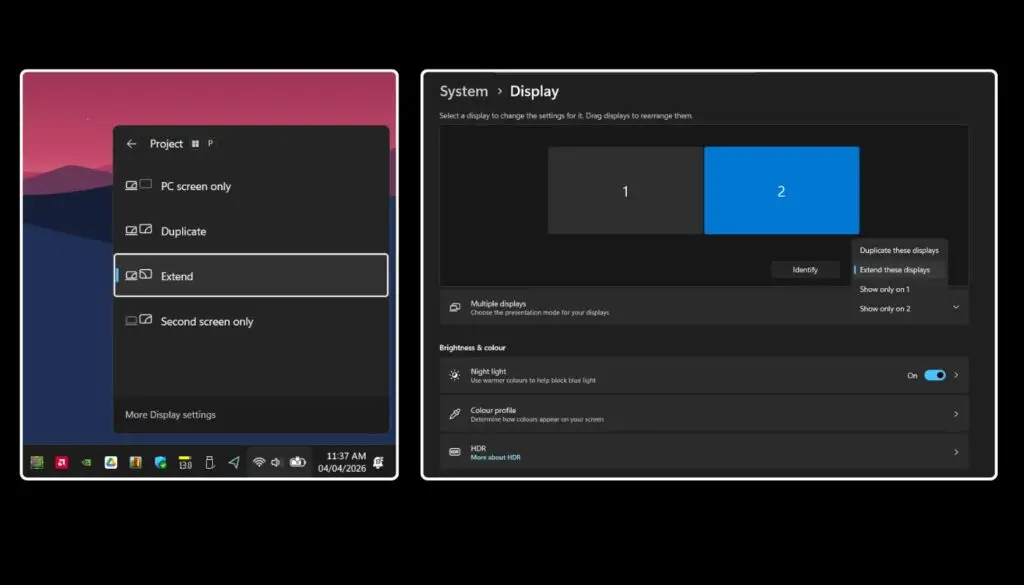
This fix works regardless of your GPU brand. As mentioned earlier, if your laptop and external monitor have different aspect ratios or resolutions, Windows may apply letterboxing or black borders when using Duplicate display mode. Here is how to resolve it:
Press Win + P on your keyboard to open the projection panel.
or
Go to Display Settings → Multiple Displays
Try switching between:
- Extend these displays
- Second screen only
💡 Recommendation: Use Extend these displays for the best experience. Each screen runs at its own native resolution, eliminating scaling issues and black borders entirely.
Final Thoughts
Black borders around your monitor are almost always caused by a resolution or scaling mismatch between your PC output and your display. Whether you are on NVIDIA, AMD, or Intel graphics, the fix is straightforward once you know where to look. Start by updating your drivers, then correct the resolution and scaling settings within your GPU’s control software. If the issue persists, switching your Windows display mode to Extend or Second screen only is the most reliable universal fix.
I personally ran into this issue after upgrading my laptop with RTX4060 GPU and connecting my 1920p external monitor. Within a few minutes of adjusting the settings in NVIDIA Control Panel, the black borders disappeared entirely. I hope this guide saves you the same frustration.
📌 Enjoyed This Fix? You’ll Love My YouTube Channel
I share the content on tech fixes, AI trends, digital marketing, SEO tips, Gaming and more. If you are into any of that, come join the channel
About the Author

Hashan De Zoysa
Digital Marketing and SEO Specialist with 7+ years of experience in e-commerce growth, paid advertising, and search engine optimisation. Currently working at Arbortec Forestwear as a Web Design and Digital Marketing Specialist.