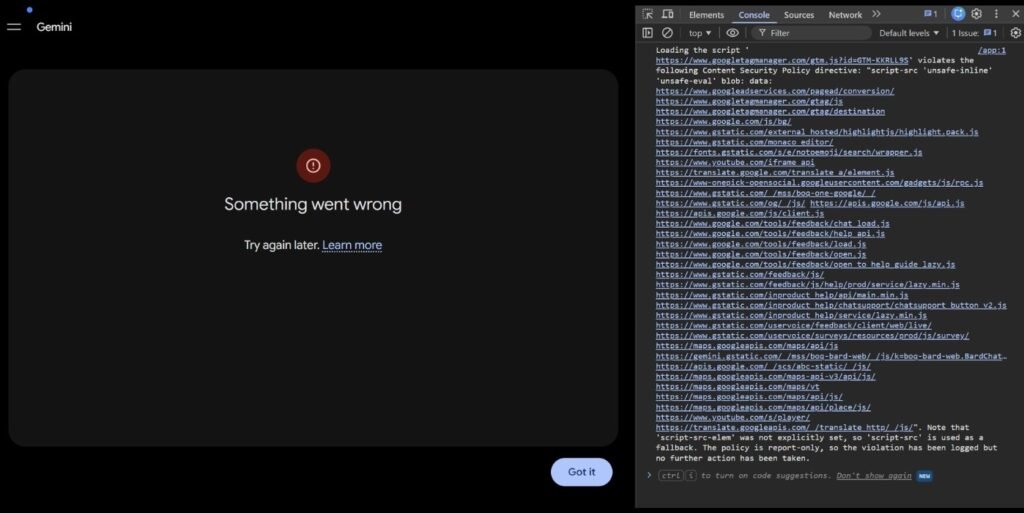
If you’re seeing the frustrating “Something went wrong. Try again later” error when trying to use Google Gemini on your desktop browser, you’re not alone. I recently experienced this issue myself and spent hours trying different troubleshooting methods before finally finding a solution.
What made the problem even more confusing was that Gemini worked perfectly on both Android and iPhone using the same Google account, but it refused to work on any desktop browser.
After testing multiple solutions and eventually resolving the issue, I wanted to share the exact steps that worked for me in case you’re facing the same problem.
The Problem
The strange part about my situation was that Gemini worked perfectly on the mobile app, on both Android and iOS, using the exact same Google account. But the moment I tried to open it in a desktop browser, I was met with that generic error message.
I tried everything you would expect to try first: clearing the browser cache, switching browsers, turning off my VPN, connecting to different Wi-Fi networks, and even testing on different computers. Nothing worked. The issue followed the account, not the device or the browser.
💡 Worth knowing: This error appears to affect newly created Gmail addresses more than older, established ones. If your account was created recently, the steps below are especially relevant for you.
Before You Start: Check Your Account Type
First things first. Make sure you are signing in with a personal Gmail account, not a work or organisation account (such as a Google Workspace account managed by a company or school). Gemini on desktop has known limitations with managed accounts, and that alone can cause this error. If you are on a personal @gmail.com address and still seeing the error, read on.
The Fix: Step by Step
Enable Web & App Activity in Your Google Account
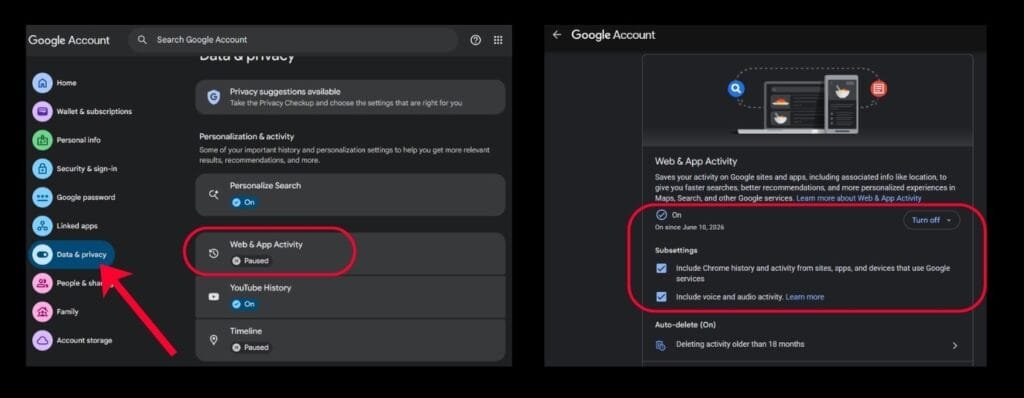
Open Chrome on your desktop and go to your Google Account settings. Click “Manage your Google Account“, then navigate to Data & Privacy and select Web & App Activity.
If this setting is turned off, turn it on. If it is already on, toggle it off, wait 2 to 3 minutes, then turn it back on again. When enabling it, make sure all sub-settings are ticked, including “Include voice and audio activity“. You can also delete previous app activity from this screen if you like.
My theory is that the connection between your Google account and Gemini’s backend services can occasionally become stuck or fail to initialise correctly. Refreshing these settings may force Google to rebuild the connection and re-sync your account permissions with Gemini.
Enable Other Google Activity Features
While you are in the Data & Privacy section, take a moment to enable other Google activity features such as YouTube History, Personalised Search, and Timeline. This helps ensure your account is fully active and connected across Google services, which can resolve the backend issue causing the error.
Complete Your Google Account Profile
Head over to your Google Account Personal Info page and ensure both your First Name and Last Name fields are filled in. Incomplete profiles have been linked to account connectivity issues with some Google services, Gemini included.
Submit Feedback via the Gemini Mobile App
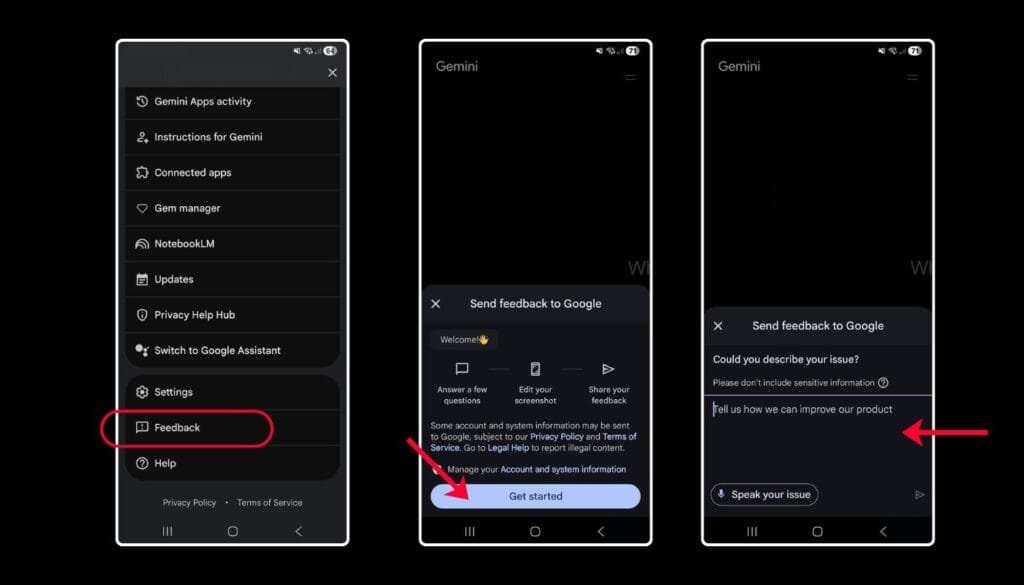
This was the final step I took before the issue was resolved. Open the Gemini app on your mobile device, tap the Settings icon, and go to Feedback. Send a brief description of your issue to the Google support team. Here is the message I used, which you are welcome to adapt:
After submitting that feedback, my issue was resolved within a single day. The desktop version of Gemini started working without any further changes on my end. The most likely explanation is that the connection between a specific account and the Gemini backend can get stuck, and toggling your activity settings, combined with sending a support signal prompts a reconnect.
If it has not been resolved after 1 to 2 Days
In the event that the above steps have not sorted things out within a couple of days, there is one more avenue worth trying. You can submit an issue report directly to the Chrome development team via the official Chromium issue tracker:
https://issues.chromium.org/issues/wizard
Fill in the relevant fields and describe your issue briefly as prompted. The team reviews submissions regularly, and if there is a browser-level bug contributing to your problem, this is the right place to flag it.
Quick Summary
- Confirm you are using a personal @gmail.com account, not a managed or organisation account
- Go to Google Account › Data & Privacy › Web & App Activity and toggle it off and back on
- Tick all sub-settings, including voice and audio activity
- Enable other Google Features, including YouTube History, Personalised Search, and Timeline, while you are there
- Make sure your First and last names are filled in on your Personal Info page
- Submit feedback through the Gemini mobile app, describing the issue
- Wait 1 to 2 days. If no luck, submit a report to the Chromium issue tracker
Final thoughts
Hopefully, this saves you the hours of browser switching and cache clearing that I went through. If you have tried these steps and are still stuck, or if you found a different fix that worked for you, kindly share it with me. It is always useful to hear what worked for others facing the same issue.
About the Author

Hashan De Zoysa
Digital Marketing and SEO Specialist with 7+ years of experience in e-commerce growth, paid advertising, and search engine optimisation. Currently working at Arbortec Forestwear as a Web Design and Digital Marketing Specialist.