If you run Facebook or Instagram advertising, understanding what users do after clicking your ads is just as important as getting the click itself. While Meta Ads Manager provides valuable campaign metrics, it doesn’t always tell the full story of how visitors interact with your website. That’s where Google Analytics 4 (GA4) comes in.
By connecting GA4 with Meta Ads Manager, you can gain deeper insights into user behaviour, compare attribution models, measure engagement beyond conversions, and make more informed marketing decisions.
In this guide, I’ll show you exactly how to connect GA4 to Meta Ads Manager, explain the benefits, and highlight some important facts you should know.
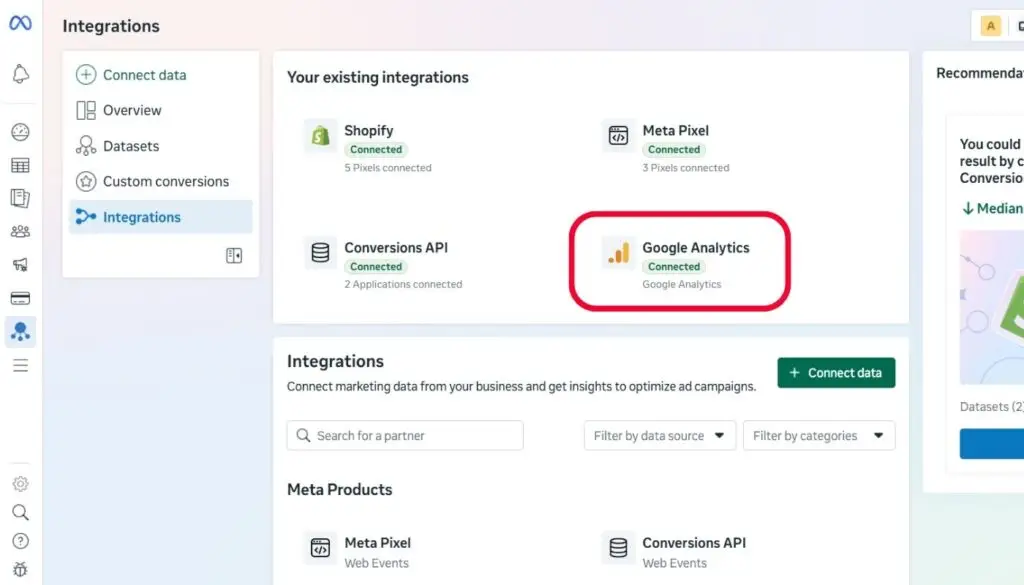
Why Connect GA4 to Meta Ads Manager?
Before jumping into the steps, it is worth understanding what this integration actually does, because it is easy to assume it is just another reporting dashboard. It is not. Here is what genuinely changes once GA4 and Meta Ads Manager are connected.
✅ Better cross-channel reporting
✅ Understand the complete customer journey
✅ Compare Meta attribution with GA4 attribution
✅ Analyse landing page engagement
✅ Measure events beyond purchases
✅ Build more accurate marketing reports
Although GA4 data does not directly optimise Meta’s ad delivery algorithm, it provides valuable insights that help marketers improve campaigns through better decision-making.
What You’ll Need Before You Start
Before linking the platforms, ensure you have:
- Active GA4 property
- Administrator access to GA4
- Active Meta Business Suite for Business
- Admin Access to Meta Ads Manager
- A website with the GA4 Google Tag already installed
Connecting GA4 to Meta Ads Manager
Follow the steps below to successfully link your GA4 property with Meta Ads Manager.
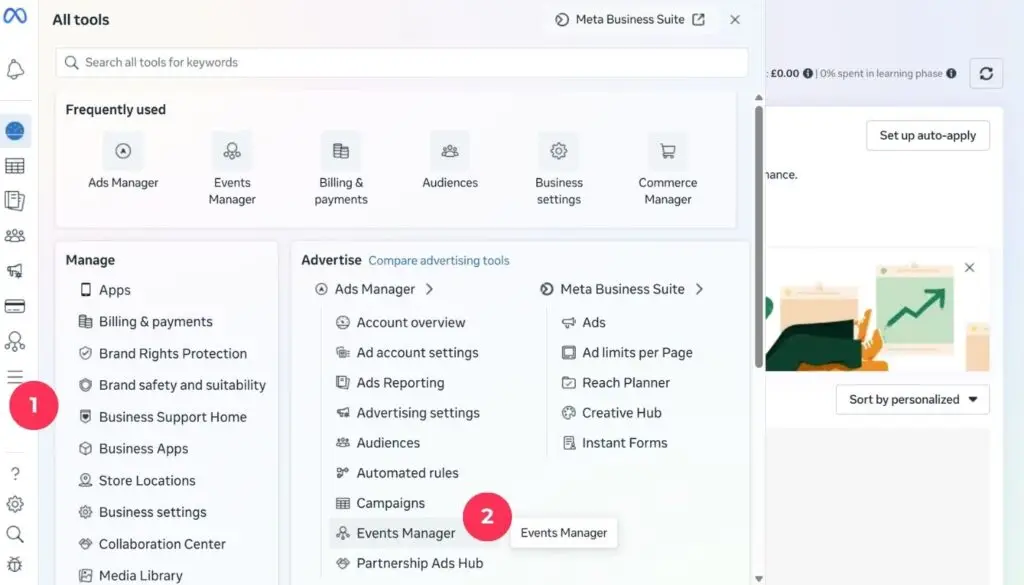
Step 1: Open Meta Events Manager
Log in to Meta Business Manager and head to Events Manager. This is the control centre for all your pixels, datasets and third-party integrations, not just GA4.
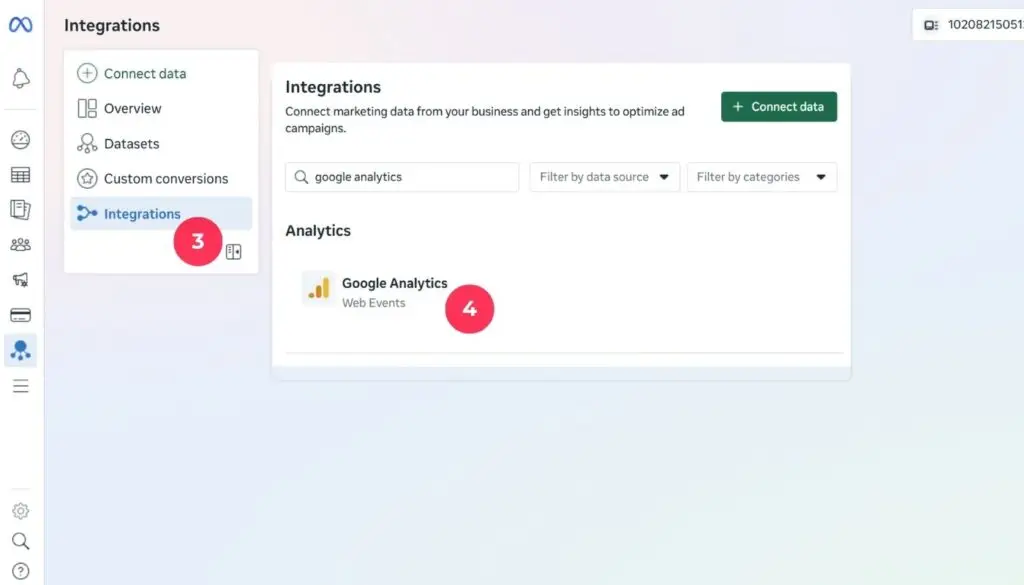
Step 2: Go to Analytics Integrations
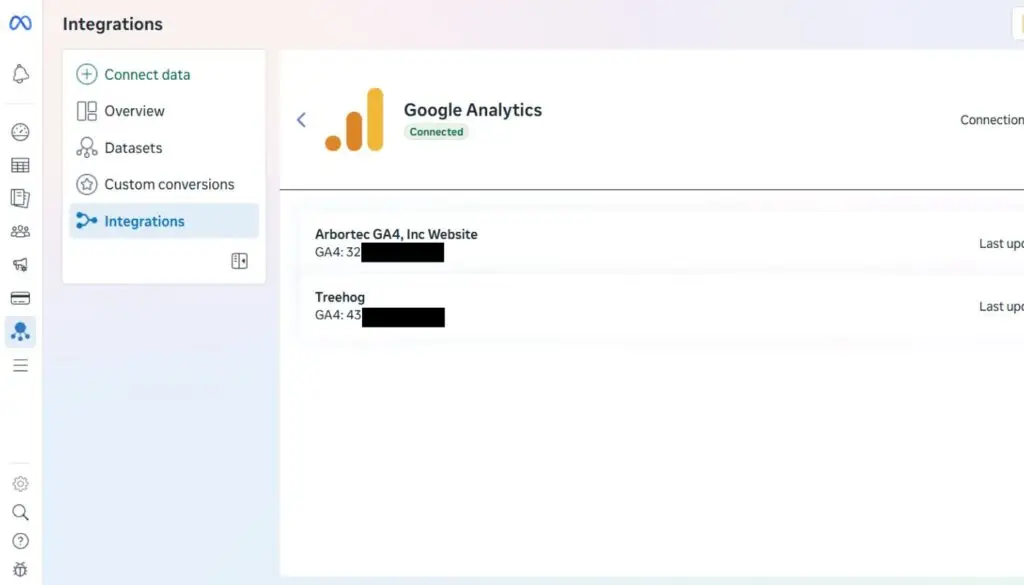
In the left-hand navigation menu, click Integrations. Under the Analytics category, you should see Google Analytics listed as an available option.
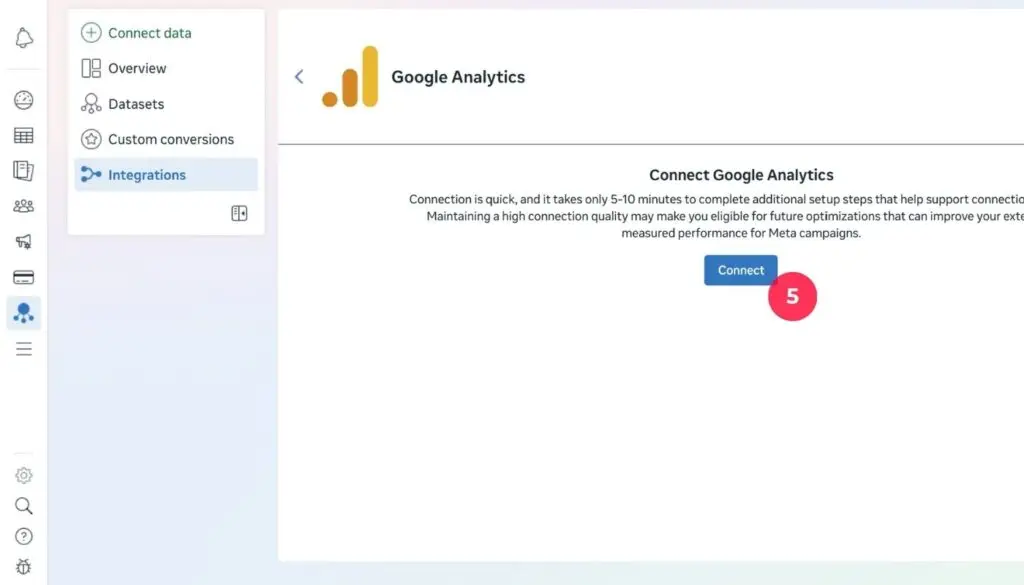
Step 3: Start the Connection
Click on Google Analytics, then select Connect. Choose whether you want to link at the business portfolio level, applying it across every ad account in your business, or at an individual ad account level. If you manage a single brand, connecting at the ad account level gives you more control.
Step 4: Sign In and Select Your GA4 Property
You will be prompted to sign in with the Google account tied to your GA4 property. Once authenticated, choose the correct GA4 property from the list. Double-check you are selecting the right one if you manage multiple sites or clients.
Step 5: Choose Your Sharing Preferences
Meta will ask whether you want to share data from all traffic sources or only traffic coming from Meta. For most advertisers, sharing all traffic sources is the better option, since GA4 often misses Meta-driven conversions due to browser tracking restrictions, and a wider data pool gives Meta’s algorithm stronger signals to learn from.
Step 6: Map GA4 Events to Meta Conversions
This is the most important part of the setup. Meta will detect eligible GA4 events and let you map each one to a corresponding Meta conversion event, for example matching your GA4 purchase event to Meta’s Purchase standard event. Keep this mapping one-to-one wherever possible. Mapping several GA4 events to a single Meta event tends to trigger a quality warning and can muddy your reporting.
Does Connecting GA4 Improve Meta Ads Performance?
This is one of the most common questions.
The short answer is: No, not directly.
Unlike Google Ads, Meta does not use GA4 events to optimise its delivery system.
Meta continues to optimise campaigns using:
- Meta Pixel
- Conversions API (CAPI)
- Website events
- In-app conversion signals
However, GA4 helps marketers identify opportunities to improve campaigns by providing richer behavioural insights. Better insights often lead to better campaign decisions over time.
Best Practices for Better Results
- Keep your Meta Pixel active
- Implement Meta Conversions API (CAPI)
- Ensure GA4 events are correctly configured
- Use consistent UTM parameters on all Meta campaigns
- Regularly compare Meta Ads Manager with GA4 reports
- Review attribution windows before evaluating campaign performance
Final thoughts
Connecting Google Analytics 4 (GA4) to Meta Ads Manager gives marketers a more complete understanding of customer behaviour beyond ad clicks.
While the integration won’t directly improve Meta’s optimisation algorithm, it provides valuable insights into user engagement, landing page performance, attribution, and cross-channel marketing. These insights can help you make smarter decisions, refine your campaigns, and maximise the return on your advertising investment.
If you’re already using Meta Ads, linking GA4 is a worthwhile step towards more accurate reporting and better-informed marketing strategies.
About the Author

Hashan De Zoysa
Digital Marketing and SEO Specialist with 7+ years of experience in e-commerce growth, paid advertising, and search engine optimisation. Currently working at Arbortec Forestwear as a Web Design and Digital Marketing Specialist.